When you sign up for QuizFlex, the very first thing you see is a simple question: How will you use QuizFlex? This isn't just a formality - your answer shapes your entire experience on the platform. From the dashboard layout to the features you see in the sidebar, everything adapts to match the way you learn, teach, or manage.
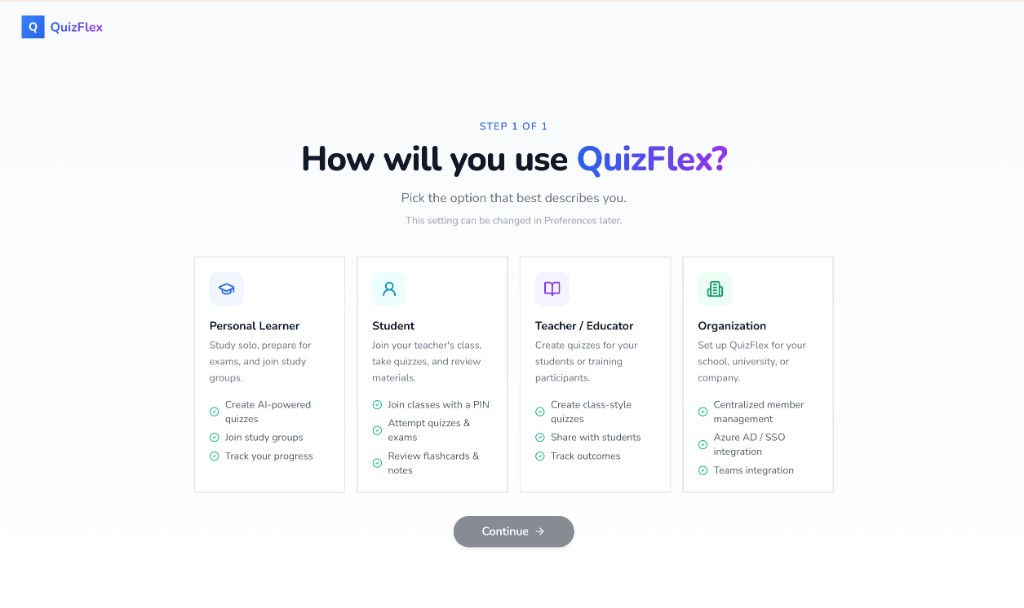
QuizFlex offers four distinct onboarding paths, each designed for a different type of user. Whether you're studying solo for an upcoming exam, joining your teacher's class, creating quizzes for your students, or rolling out a learning platform for your entire organization, there's a path built just for you.
The Four QuizFlex Roles
Personal Learner
Best for: Self-directed learners, hobbyists, exam preppers, and lifelong learners.
If you're studying on your own - whether that's preparing for the SAT, brushing up on a professional topic, or exploring something new - the Personal Learner path gives you full access to QuizFlex's AI-powered study tools.
What you get:
- AI-generated quizzes - Create quizzes from any topic, PDF, YouTube video, or text in seconds
- Flashcards and notes - Build study materials alongside your quizzes
- Study groups - Join or create study groups to learn with peers
- Analytics - Track your quiz scores, time spent, and progress over time
- Full feature access - Popular exam presets, presentations, voice notes, and the public library
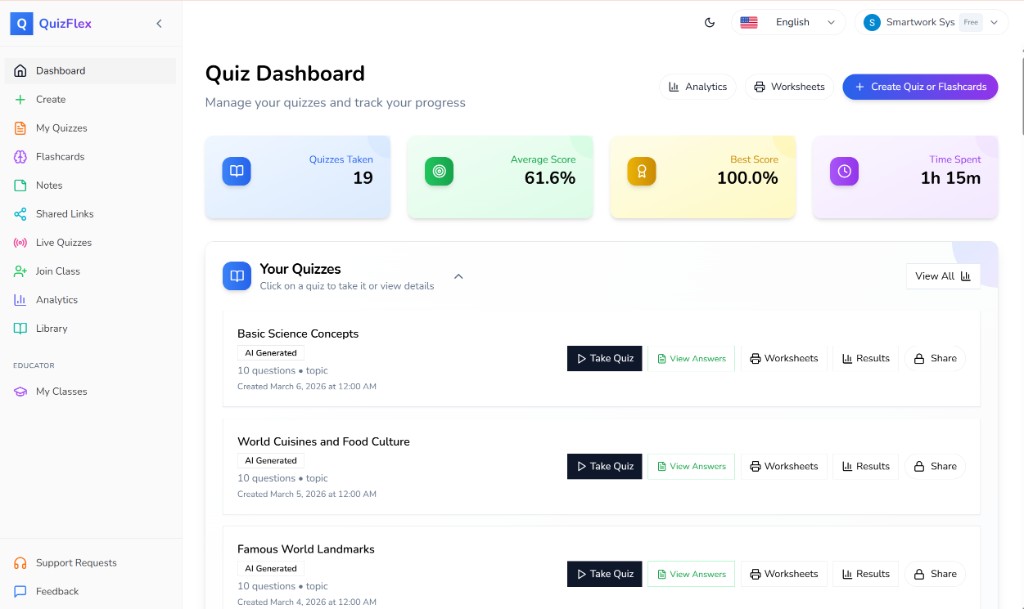
The Personal Learner path is the most feature-rich for individual users. You see everything QuizFlex has to offer in the sidebar, and you can explore at your own pace.
Student
Best for: Students enrolled in a class or course who need to take assigned quizzes and review materials.
If your teacher or institution uses QuizFlex, the Student path streamlines your experience. Instead of being overwhelmed with creation tools, your dashboard is focused on what matters most: joining classes, taking quizzes, and reviewing your results.
What you get:
- Join classes with a PIN - Your teacher shares a class code, and you're in with one click
- Attempt quizzes and exams - Take quizzes assigned by your teacher, including timed exams and live quiz sessions
- Review flashcards and notes - Access study materials shared by your teacher or class
- Focused sidebar - The interface is simplified so you can concentrate on learning, not configuring
The Student path hides advanced features like exam presets, presentations, and voice notes so you aren't distracted. You can always change your role later in Preferences if your needs evolve.
Teacher / Educator
Best for: Teachers, professors, tutors, and corporate trainers who create content for others.
The Teacher / Educator path unlocks classroom management tools. You can create classes, invite students with a PIN code, assign quizzes and study materials, and track how your students are performing - all from a single dashboard.
What you get:
- Create classes - Set up a class with a name, description, and student limit, then share the auto-generated PIN
- Assign content - Push quizzes, flashcards, and notes directly to your class
- Live quizzes - Run real-time quiz sessions where students compete on screen
- Track outcomes - See completion rates, score distributions, and individual student performance
- My Classes in the sidebar - Quick access to all your classes under the Educator section
As a teacher, your sidebar includes a dedicated Educator section with My Classes for fast navigation. You still have access to AI quiz creation, so you can generate quizzes from topics, PDFs, or videos and immediately share them with your students.
Organization
Best for: Schools, universities, training centers, and companies deploying QuizFlex at scale.
The Organization path is built for administrators who need to manage multiple teachers, students, and classrooms under one roof. When you select this option, you're guided through a four-step setup wizard to configure your organization.
What you get:
- Centralized member management - Invite teachers and students by email, assign roles, and manage your team
- Organization dashboard - See total members, quizzes created across the org, subscription status, and recent activity
- Classrooms overview - View all classrooms created by your organization's teachers in one place
- Billing and subscription - Manage your organization's plan, seat limits, and payment through Stripe
- Organization settings - Configure your org name, default language, timezone, and branding
- Azure AD / SSO integration - Connect your Azure Active Directory tenant for single sign-on
- Teams integration - Bring QuizFlex into your Microsoft Teams workflow
The Organization sidebar adds a full Organization section with links to Org Dashboard, Classrooms, Members, Billing, and Org Settings - giving admins everything they need without leaving the platform.
How to Choose Your Role
Not sure which one to pick? Here's a quick guide:
| I want to... | Choose |
|---|---|
| Study on my own and create AI quizzes | Personal Learner |
| Join my teacher's class and take quizzes | Student |
| Create classes and assign quizzes to students | Teacher / Educator |
| Manage a school, university, or company on QuizFlex | Organization |
Can I Change My Role Later?
Yes. Your onboarding choice is not permanent. You can change your role at any time from Preferences in your account settings. If you started as a Personal Learner and later become a teacher, just switch - your quizzes, flashcards, and notes come with you.
The Organization Setup Wizard
If you select Organization, you'll go through four quick steps instead of landing directly on the dashboard:
- Basics - Enter your organization name and choose a URL slug (e.g., quizflex.com/org/your-org)
- Type - Select your organization type: School, University, Company, Training Center, or Other
- Identity - Optionally connect your Azure AD tenant for SSO
- Review - Set your default language and timezone, then confirm
Once setup is complete, you're taken to the Organization Dashboard where you can start inviting members and managing classrooms.
A Personalized Experience From Day One
QuizFlex's onboarding isn't a generic welcome screen - it's the foundation of your personalized experience. By knowing how you plan to use the platform, QuizFlex can:
- Show you the right tools in the sidebar
- Customize your dashboard layout
- Surface relevant features and hide distractions
- Provide the right getting-started guidance
Whether you're a solo learner exploring AI-generated quizzes, a student joining your first class, a teacher building a digital classroom, or an admin deploying QuizFlex across your organization - the onboarding step ensures you hit the ground running.
Ready to get started? Sign up for QuizFlex and choose the path that fits you best.
Topics covered
- Onboarding
- User Roles
- Personal Learner
- Student
- Teacher
- Educator
- Organization
- Getting Started
- AI Quiz Platform
- Education Technology
Frequently asked questions
What is Choose Your Path: QuizFlex Onboarding for Learners, Students, Teachers, and Organizations?
How do I study Choose Your Path: QuizFlex Onboarding for Learners, Students, Teachers, and Organizations effectively?
What is the best AI quiz tool for Choose Your Path: QuizFlex Onboarding for Learners, Students, Teachers, and Organizations?
How can I practice Choose Your Path: QuizFlex Onboarding for Learners, Students, Teachers, and Organizations with QuizFlex AI?
Is QuizFlex AI free for students and teachers?
Stay in the Loop
Get weekly tips on AI-powered learning, quiz strategies, and product updates. No spam, unsubscribe anytime.
How to Use QuizFlex as a Teacher or Organization Admin: A Complete Guide
Quizflex for Language Learning: A Practical Approach
Related Articles
Continue learning with these related posts
Teacher vs. Student: The Complete Guide to Classes, Quizzes, and Progress Tracking in QuizFlex
A step-by-step walkthrough for teachers and students on how to create classes, assign quizzes, take quizzes, and track progress in QuizFlex. Learn how both roles work together inside the classroom experience.
How AI Quiz Generation is Revolutionizing Education
Learn about how ai quiz generation is revolutionizing education and how Quizflex can help you create engaging quizzes.
How AI Quiz Generation is Revolutionizing Education
Learn about how ai quiz generation is revolutionizing education and how Quizflex can help you create engaging quizzes.