QuizFlex isn't just for individual learners. If you're a teacher, professor, corporate trainer, or organization admin, the platform includes a powerful set of tools to create classes, assign quizzes, run live sessions, and track how your learners are performing - all powered by AI.
This guide walks you through everything available in the Teacher / Educator and Organization feature sets, from your first class to managing a full organization.
Part 1: Teacher / Educator Features
Creating Your First Class
Once you've selected Teacher / Educator during onboarding (or switched to it in Preferences), you'll see a My Classes link under the Educator section in the sidebar. Here's how to create a class:
- Navigate to My Classes from the sidebar
- Click Create Class
- Enter a class name (e.g., "Biology 101 - Spring 2026")
- Add an optional description
- Set the maximum number of members (default is 200)
- Click Create
Your class is created instantly and assigned a unique PIN code. Share this PIN with your students so they can join.
How Students Join Your Class
Students join your class using the Join Class page:
- The student navigates to Join Class in their sidebar
- They enter your class PIN
- They see a preview of the class (name, description, member count)
- They click Join and they're in
No email invitations, no complicated enrollment - just a PIN.
Assigning Content to Your Class
Once your class is set up, you can assign three types of content:
- Quizzes - Create an AI-generated quiz and assign it to your class
- Flashcards - Share flashcard sets for study and review
- Notes - Push study notes directly to your students
To assign content:
- Create a quiz, flashcard set, or note from the Create page
- Open the content from My Quizzes, Flashcards, or Notes
- Use the Share or Assign option and select your class
- Students see the assigned content in their class view
Running Live Quiz Sessions
One of the most engaging teacher features is Live Quizzes. You can run real-time quiz sessions where students compete simultaneously:
- Go to Live Quizzes in the sidebar
- Create a new live session from one of your quizzes
- Share the session PIN with your class
- Students join from their devices
- Questions appear in real time - students answer on their screens
- See a live leaderboard and results as the session progresses
Live quizzes are great for in-class reviews, exam prep sessions, and making learning interactive.
Tracking Student Results
As a teacher, you can monitor student performance at multiple levels:
Class-level view:
- Total students, quizzes assigned, flashcards shared, notes shared, live sessions run
- Tabs for Students, Quizzes, Flashcards, Notes, and Live Sessions
Quiz-level analytics (via Share Tracking):
- Completion rate - How many students have finished the quiz
- Score distribution - Breakdown into Excellent (90%+), Good (70-89%), Average (50-69%), and Poor (below 50%)
- Recent attempts - See who took the quiz, when, and what they scored
- Average score - Across all attempts
These analytics help you identify which topics students are struggling with and adjust your teaching accordingly.
Part 2: Organization Features
If you're managing QuizFlex for an entire school, university, or company, the Organization features give you centralized control over members, classrooms, billing, and settings.
The Organization Dashboard
After completing the organization setup wizard during onboarding, you land on the Org Dashboard. This is your command center:
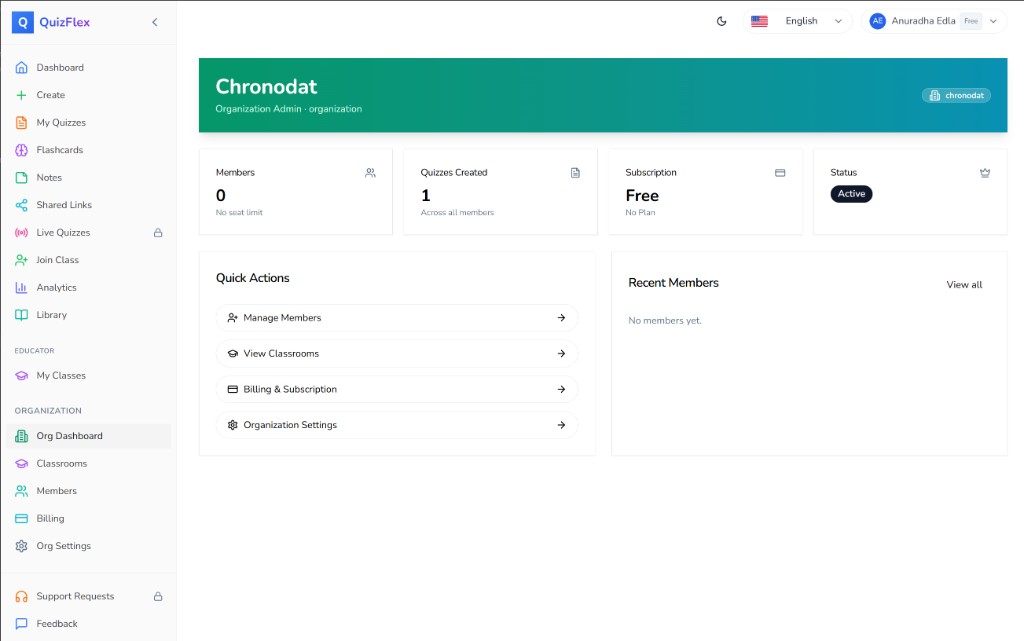
- Members - Total members in your organization (with seat limit info)
- Quizzes Created - Total quizzes created across all members
- Subscription - Current plan (Free, Plus, Elite, or Pro)
- Status - Whether the organization is Active
Below the stats, you'll find Quick Actions:
- Manage Members - Add, remove, or change roles for organization members
- View Classrooms - See all classrooms created by teachers in your org
- Billing & Subscription - Manage your plan and payment
- Organization Settings - Configure org name, type, language, and timezone
Managing Members
The Members page is where you control who has access to your organization:
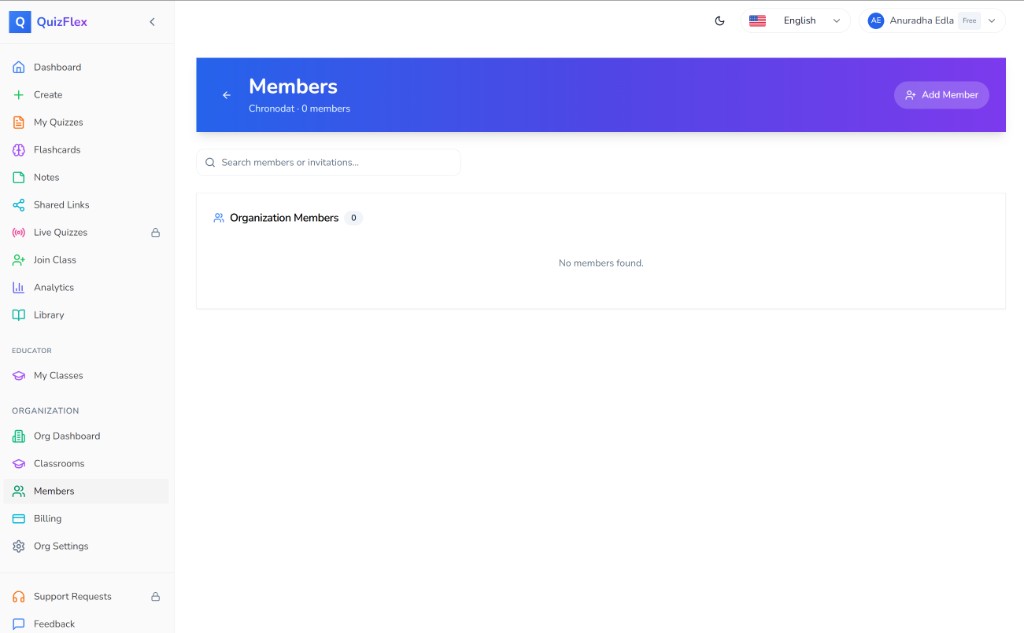
Inviting new members:
- Go to Members from the Organization section in the sidebar
- Click Add Member
- Enter the person's email address
- Select their role: Member, Educator, or Org Admin
- Click Send Invitation
The invitee receives an email and can join your organization when they sign up or log in.
Managing existing members:
- Change role - Promote a member to Educator or Org Admin, or demote as needed
- Remove member - Revoke access instantly
- Search - Filter members and invitations by name or email
Viewing Organization Classrooms
The Classrooms page gives you a bird's-eye view of all classes created by teachers in your organization:
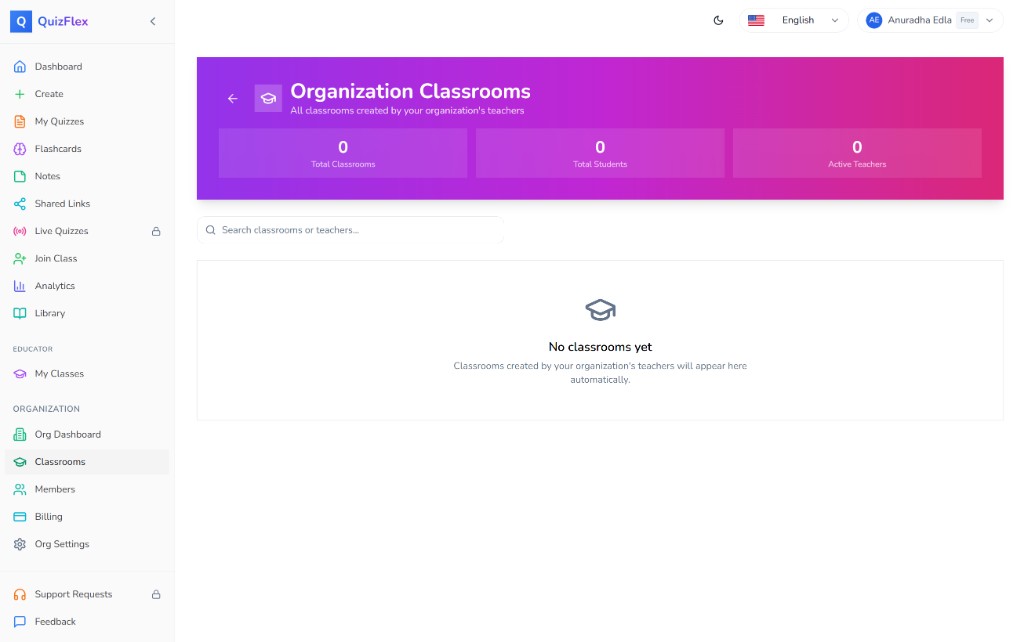
- Total Classrooms - How many classes exist across your org
- Total Students - Combined student count across all classrooms
- Active Teachers - How many teachers have created at least one class
- Search - Find classrooms by name or teacher
This page is read-only for admins - teachers manage their own classes. But as an admin, you can monitor activity and ensure classrooms are being used effectively.
Billing and Subscription
The Billing page lets you manage your organization's plan:
| Plan | What It Includes |
|---|---|
| Free | Basic access, limited seats |
| Plus | More seats, priority support |
| Elite | Advanced analytics, higher limits |
| Pro | Unlimited seats, full feature access, dedicated support |
- Switch between monthly and yearly billing
- Manage seat limits based on your plan
- Payment is handled securely through Stripe
Organization Settings
The Settings page lets you configure your organization's profile:
- Organization name - Update your display name
- URL slug - Set during onboarding (read-only after creation)
- Organization type - School, University, Company, Training Center, or Other
- Default language - Set the default interface language for your org
- Timezone - Configure the default timezone for due-date entry, calendar display, and reports (deadlines are stored as absolute times)
Azure AD and SSO Integration
For enterprises and institutions using Microsoft, QuizFlex supports Azure Active Directory integration:
- Single Sign-On (SSO) - Members can log in with their organizational Microsoft accounts
- Tenant ID configuration - Connect your Azure AD tenant during onboarding or from Org Settings
- Microsoft Teams integration - Bring QuizFlex directly into your Teams environment
This makes QuizFlex ideal for schools and companies already using the Microsoft ecosystem - no separate credentials, no friction.
Teacher vs. Organization Admin: What's the Difference?
| Capability | Teacher / Educator | Organization Admin |
|---|---|---|
| Create classes | Yes | Yes |
| Assign quizzes, flashcards, notes | Yes | Yes |
| Run live quiz sessions | Yes | Yes |
| Track student results | Yes | Yes |
| View all org classrooms | No | Yes |
| Manage members | No | Yes |
| Manage billing | No | Yes |
| Configure org settings | No | Yes |
| Azure AD / SSO setup | No | Yes |
In short: Teachers create and teach. Organization admins manage the platform. An org admin can also be a teacher - the roles are additive.
Getting Started
- Sign up at quizflex.ai and choose Teacher / Educator or Organization during onboarding
- Create your first class and share the PIN with your students
- Generate quizzes with AI - from a topic, PDF, YouTube video, or your own text
- Assign content to your class and watch students engage
- Track results to see who's excelling and who needs help
If you're an organization admin, start by inviting your teachers from the Members page. Once they create classes, you'll see everything from the Org Dashboard.
QuizFlex makes it easy to bring AI-powered learning to your classroom or organization. Get started today and transform the way you teach and train.
Topics covered
- Teacher Features
- Organization Admin
- Classroom Management
- Quiz Assignment
- Live Quizzes
- Student Tracking
- Member Management
- Education
- Corporate Training
- LMS
Frequently asked questions
What is How to Use QuizFlex as a Teacher or Organization Admin: A Complete Guide?
How do I study How to Use QuizFlex as a Teacher or Organization Admin: A Complete Guide effectively?
What is the best AI quiz tool for How to Use QuizFlex as a Teacher or Organization Admin: A Complete Guide?
How can I practice How to Use QuizFlex as a Teacher or Organization Admin: A Complete Guide with QuizFlex AI?
Is QuizFlex AI free for students and teachers?
Stay in the Loop
Get weekly tips on AI-powered learning, quiz strategies, and product updates. No spam, unsubscribe anytime.
Quizflex vs. Traditional Quiz Creation: A Time-Saving Comparison for Educators and Students
Choose Your Path: QuizFlex Onboarding for Learners, Students, Teachers, and Organizations
Related Articles
Continue learning with these related posts
Microlearning with Quizzes: The 5-Minute Learning Strategy That Actually Works
Discover how microlearning with short quizzes can boost knowledge retention by 80%. Learn the science behind bite-sized learning, practical implementation strategies, and how to create effective 5-minute quiz sessions for classrooms and corporate training.
Teacher vs. Student: The Complete Guide to Classes, Quizzes, and Progress Tracking in QuizFlex
A step-by-step walkthrough for teachers and students on how to create classes, assign quizzes, take quizzes, and track progress in QuizFlex. Learn how both roles work together inside the classroom experience.
Quizflex for Corporate Training: A Complete Guide to Supercharging Employee Development
Learn about quizflex for corporate training: a complete guide and how Quizflex can help you create engaging quizzes.